
How to Upgrade Cisco UCS Server Memory Without Compatibility Issues
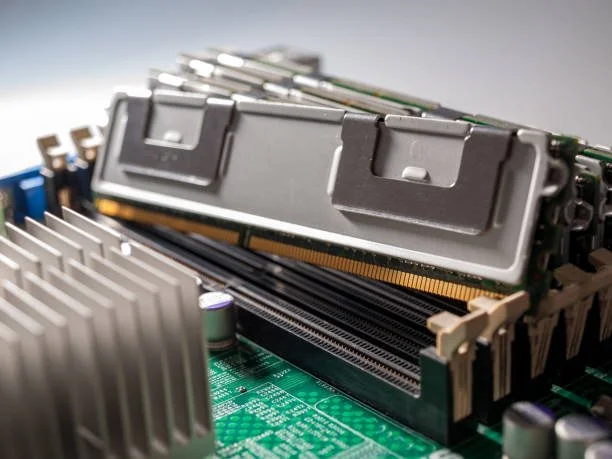
Enterprise workloads rarely stay static. As data centers scale virtualization densities, containerized clusters, and analytics engines, memory consumption quickly hits critical thresholds. Expanding memory capacity is one of the most cost-effective ways to extend hardware lifecycle, boost I/O performance, and defer costly server replacements. However, executing a Cisco server memory upgrade across Cisco Unified Computing System (UCS) B-Series blade servers or C-Series rack servers demands strict adherence to population rules, voltage requirements, and architecture specifications.
At Ram Exchange, we specialize in helping IT teams, data centers, and system integrators execute seamless hardware transitions. A single misconfigured DIMM can trigger uncorrectable ECC errors, boot failures, memory bus speed throttling, or entire blade discovery faults within Cisco UCS Manager (UCSM).
According to benchmarking data from the Uptime Institute, more than 54% of significant outages generate financial impacts exceeding $100,000, with hardware configuration oversights representing a recurring operational risk. Ensuring full hardware compliance before you deploy memory is vital for continuous operations.
This guide provides a comprehensive, field-tested procedure for executing a safe Cisco server memory upgrade, helping you source the correct components and install them without encountering post-upgrade downtime.
Cisco UCS Memory Architecture: Understanding the Basics
Cisco UCS servers utilize multi-channel memory architectures paired with Intel Xeon Scalable or AMD EPYC processors. Achieving maximum memory bandwidth requires balancing channels evenly across both CPU sockets.
Memory Types Supported in Cisco UCS
Cisco UCS servers deploy three primary DRAM classifications:
1. RDIMM (Registered DIMM): Features a hardware register buffer between the memory controller and the DRAM chips. RDIMMs reduce electrical load on the system controller, supporting higher capacities and stable multi-rank configurations.
2. LRDIMM (Load-Reduced DIMM): Employs memory buffers to isolate both control and data lines. LRDIMMs support ultra-high densities (such as 64GB, 128GB, or 256GB per module) by minimizing bus loading, making them ideal for heavy virtualization.
3. 3DS RDIMM (Three-Dimensional Stacking): Uses Through-Silicon Via (TSV) interconnects to stack DRAM dies inside a single package, enabling massive capacities on modern UCS M5, M6, and M7 architectures.
The Golden Compatibility Rules
· Never Mix RDIMMs and LRDIMMs: Mixing registered and load-reduced modules on the same server, or even across different channels, causes POST errors and prevents server initialization.
· Match Ranks and Frequencies per Channel: While modern memory controllers can adjust down to the lowest common frequency, mixing speeds forces faster modules to down-clock. Keep ranks identical across channels for optimal throughput.
· Maintain Channel Symmetry: If you populate Channel A with two dual-rank 32GB modules, Channel B must mirror that identical arrangement.
Comparing Cisco UCS Memory Generations
Before choosing to buy Cisco UCS RAM, identify which hardware generation your server belongs to. Installing mismatched generations or unsupported module speeds leads to immediate configuration rejections.
| Server Series | Typical Processors | Memory Standard | Maximum Native Speeds | Typical Form Factors |
|---|---|---|---|---|
| Cisco UCS M4 (e.g., B200 M4, C220 M4) | Intel Xeon E5-2600 v3/v4 | DDR4 | 2133 / 2400 MHz | RDIMM, LRDIMM |
| Cisco UCS M5 (e.g., B200 M5, C240 M5) | 1st/2nd Gen Intel Xeon Scalable | DDR4 | 2666 / 2933 MHz | RDIMM, LRDIMM, Intel Optane PMem |
| Cisco UCS M6 (e.g., B200 M6, C220 M6) | 3rd Gen Intel Xeon Scalable / AMD EPYC | DDR4 | 3200 MHz | RDIMM, LRDIMM |
| Cisco UCS M7 (e.g., B200 M7, C240 M7) | 4th/5th Gen Intel Xeon Scalable / AMD EPYC 9004 | DDR5 | 4800 / 5600 MHz | DDR5 RDIMM |
Using properly matched hardware protects performance and ensures compliance with enterprise power budgets. The U.S. Department of Energy highlights that optimizing server memory and refreshing aged hardware can reduce overall data center operational overhead and improve compute-per-watt efficiency.
Pre-Upgrade Preparation: What to Check First
Do not open your server chassis or schedule downtime until you complete these four preliminary verification checks:
Step 1: Audit Current Configuration in UCS Manager or IMC
Log in to your Cisco UCS Manager (for fabric-attached blades) or Cisco Integrated Management Controller (CIMC for standalone C-Series rack servers). Navigate to the Inventory > Memory tab to review:
· Total installed capacity
· Installed DIMM part numbers (Cisco PID)
· Operating clock speed versus configured clock speed
· Current slot assignments and unpopulated channels
Step 2: Review Cisco Technical Documentation
Locate the specific Cisco Spec Sheet for your hardware model (such as the Cisco UCS B200 M5 Memory Population Guide). Cisco assigns color-coded slot pairings on the motherboard to indicate primary, secondary, and tertiary slots per channel.
Step 3: Source Verified Components
Avoid generic uncertified DRAM. Enterprise UCS systems rely on Serial Presence Detect (SPD) data to validate memory parameters. If you need certified OEM-grade modules, browse our catalog of high-performance products to find verified solutions for your exact UCS generation.
Step 4: Back Up UCS Configuration
Export an all-configuration XML backup from Cisco UCS Manager. In the rare event of a management service reset or configuration mismatch, an exported system state ensures fast recovery.
Step-by-Step Guide: Executing the Memory Upgrade
Follow this procedure carefully to perform your hardware upgrade safely.
Phase 1: Graceful Power-Down and Anti-Static Protection
1. Place the target server blade or rack unit into administrative maintenance mode within your virtualization cluster (e.g., VMware vSphere or Microsoft Hyper-V) to migrate live workloads.
2. Gracefully power off the server through UCSM or CIMC.
3. Disconnect power supplies (for rack units) or unseat the blade server from the chassis.
4. Wear an ESD wrist strap grounded to the server chassis or rack frame before touching any components.
Phase 2: Installing the Memory Modules
1. Identify Slot Hierarchy: Locate the DIMM slots adjacent to CPU 1 and CPU 2. Cisco labels slots alphanumerically (e.g., A1, B1, C1, D1). Always populate the blue or white primary slots across all memory channels first, followed by secondary slots.
2. Open Retention Clips: Push the ejector tabs at each end of the DIMM slot outward.
3. Align Keying Notches: Inspect the alignment notch on the memory module. DDR4 and DDR5 modules use offset keys to prevent improper insertion.
4. Insert the Module: Press down firmly on both outer edges of the module simultaneously until the retention clips snap into the locked position. Avoid pressing on the middle of the circuit board to prevent micro-fractures in solder joints.
5. Mirror Across Sockets: Ensure that CPU 1 and CPU 2 have identical memory capacity, slot layout, and rank counts. Uneven CPU memory configurations degrade throughput by disabling multi-channel interleaving.
Phase 3: Hardware Reassembly and Power-On
1. Reinstall air baffles, chassis top covers, or slot blanking panels to preserve designed airflow paths.
2. Reseat the blade into the UCS chassis or reconnect power cords to rack units.
3. Power the server back on and monitor initial hardware discovery.
Post-Upgrade Verification and Troubleshooting
Once physical installation finishes, verify that the system recognizes the memory correctly.
Monitoring Cisco UCS Discovery
In Cisco UCS Manager, monitor the FSM (Finite State Machine) status during server reboot. The system enters a discovery cycle to interrogate the newly installed memory modules.
· FSM Status: 100% (Success): If configuration rules are satisfied, the discovery process completes, and the operational memory capacity reflects the new total.
· DIMM Inoperable / Mismatch Faults: If UCSM flags a slot as inoperable or degraded, check the System Event Log (SEL). Common error messages include:
o DIMM Capacity Mismatch: Modules installed across the same channel have unequal capacities.
o Unsupported Population Order: A secondary slot is populated while a primary slot on the same channel sits empty.
o Thermal / POST Failure: A module is improperly seated or has dirty gold fingers. Reseat the module firmly and clean contacts with isopropyl alcohol if necessary.
Maximize Hardware ROI: Why Choose Ram Exchange
Managing enterprise memory upgrades requires a balance between budget limitations, technical compatibility, and environmental responsibility. At Ram Exchange, we provide certified DRAM solutions alongside enterprise IT Asset Disposition (ITAD) services, backed by more than 18 years of industry experience.
| Value Driver | How Ram Exchange Helps Your Infrastructure |
|---|---|
| Guaranteed Compatibility | All enterprise modules undergo rigorous diagnostic testing to meet Tier-1 manufacturer specifications for Cisco UCS platforms. |
| Comprehensive Warranty | Every memory module is backed by a dependable one-year warranty, ensuring risk-free integration into mission-critical systems. |
| Asset Recovery & Buyback | When you decommission old DIMMs during a Cisco server memory upgrade, sell to us to monetize surplus hardware and maximize return on investment. |
| Certified ITAD & Recycling | We provide secure data sanitization and environmentally responsible electronics recycling compliant with current e-waste standards. |
Optimize Your Infrastructure with Confidence
Executing a seamless Cisco server memory upgrade allows your organization to boost application performance, scale virtual environments, and avoid costly hardware overhauls. By adhering to channel balancing guidelines, verifying generation support, and sourcing reliable components, you keep your data center running at peak efficiency.
If you have questions about choosing compatible modules or need help sourcing enterprise memory in bulk, contact the hardware specialists at Ram Exchange today. We will help you identify the right solution for your infrastructure.
Frequently Asked Questions
Can I mix memory modules of different speeds during a Cisco server memory upgrade?
Yes, but doing so is not recommended. The memory controller automatically throttles all installed modules down to the operational speed of the slowest installed DIMM. To achieve maximum throughput, install modules with identical clock frequencies.
What is the difference between RDIMM and LRDIMM on Cisco UCS servers?
RDIMMs include a hardware register for address and command lines, making them cost-effective for medium workloads. LRDIMMs add data buffers, which significantly reduce load on the memory bus and allow systems to support higher capacities and ranks per channel without sacrificing performance.
Why does Cisco UCS Manager report a "Memory Configuration Error" after upgrading?
This alert typically indicates an unsupported slot population order, mixed memory types (such as pairing RDIMMs with LRDIMMs), or uneven memory distribution between CPU sockets. Verify your slot order against Cisco's hardware specification sheets.
Do I need to update server firmware before installing new Cisco UCS server memory?
Updating CIMC and UCS firmware before a major memory refresh is a best practice. Newer firmware releases often expand memory compatibility tables, enhance ECC telemetry, and resolve discovery bugs for high-density modules.
How do I safely retire old memory modules after an upgrade?
Do not discard used enterprise DRAM in regular waste streams. Partnering with a certified ITAD provider ensures that decommissioned modules are either remarketed to recover capital or recycled responsibly according to environmental regulations.