Modern professional workflows place unprecedented demands on portable computers. Between dozens of active browser tabs, real-time collaboration suites, video conferencing calls, cloud storage syncing, and memory-heavy local software, mobile hardware frequently encounters bottlenecks. When an operating system runs out of physical memory, system responsiveness slows to a crawl, input lag escalates, and battery life drains quickly due to excessive disk paging. Configuring the right RAM for laptops is one of the most effective, budget-friendly ways to optimize everyday efficiency and eliminate application stutter.
At Ram Exchange, we help professionals, corporate IT departments, and hardware enthusiasts match their mobile devices with verified, high-performance DRAM solutions. Understanding the underlying mechanics of memory bandwidth, channel architecture, and module generations ensures that your machine runs at its highest potential without encountering unneeded hardware limits.
This comprehensive guide breaks down how memory configurations directly impact productivity, examines the differences between memory generations, and outlines the exact capacity tiers required for modern computing tasks.
How Laptop Memory Architecture Influences Multitasking
Random Access Memory serves as the high-speed scratchpad for your laptop processor. Unlike permanent solid-state drives (SSDs), which prioritize long-term non-volatile storage, DRAM delivers near-instantaneous access speeds to active application instructions.
When you launch more programs than your physical DRAM can hold, modern operating systems like Windows and macOS rely on virtual memory paging. The OS carves out space on your SSD (the Windows pagefile or macOS swap file) to temporarily store idle application data.
While modern NVMe solid-state drives are fast, their transfer speeds (roughly 3,000 to 7,000 MB/s) and microsecond latencies remain hundreds of times slower than native DRAM, which measures latency in nanoseconds. The constant swapping of active memory blocks back and forth to disk generates noticeable user interface freezes, dropped video frames, and unresponsive applications.
- Active Task Flow: CPU Registers connect to L1/L2/L3 Cache, which communicates directly with High-Speed Physical RAM in nanoseconds.
- Paging Bottleneck: When RAM is insufficient, the CPU is forced to wait while active blocks swap to and from the Storage SSD in microseconds.
Upgrading your memory footprint eliminates reliance on disk swap routines, allowing your processor to switch between active tasks instantaneously.
Comparing Memory Generations: DDR4 vs. DDR5 SO-DIMMs
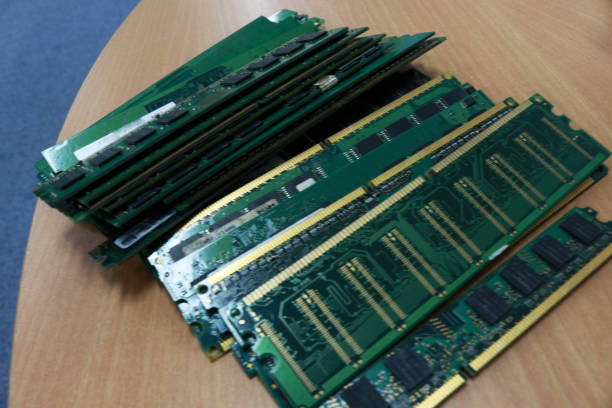
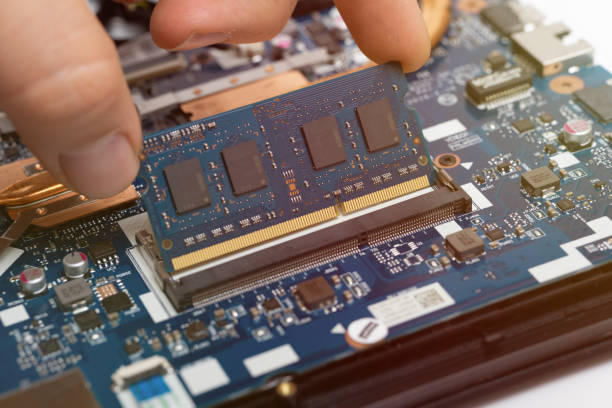
Before planning a laptop memory upgrade, you must determine which memory generation your laptop motherboard supports. Laptop computers utilize small-outline dual in-line memory modules (SO-DIMMs), which are approximately half the physical length of full-sized desktop DIMMs.
| Specification | DDR4 Laptop SO-DIMM | DDR5 Laptop SO-DIMM |
| Pin Count | 260 Pins | 262 Pins |
| Base Operating Voltage | 1.2 Volts | 1.1 Volts |
| Standard Bus Frequencies | 2400 MHz to 3200 MHz | 4800 MHz to 5600+ MHz |
| Power Management (PMIC) | Located on laptop motherboard | Integrated directly on the module PCB |
| Channel Architecture | Single 64-bit data channel per stick | Dual independent 32-bit subchannels per stick |
| On-Die ECC Support | No (Standard consumer) | Yes (Internal bit correction) |
Beyond raw transfer rates, architectural efficiency plays a major role in device longevity. Operational data from the U.S. Department of Energy Federal Energy Management Program reveals that properly configured power-management settings and efficient system hardware components reduce annual computer energy consumption by up to 27%. Transitioning to lower-voltage DDR5 laptop RAM (1.1V vs 1.2V) with integrated power management integrated circuits (PMICs) directly assists in regulating thermal dissipation and preserving battery charge during prolonged mobile sessions.
If your organization plans to refresh or expand a fleet of corporate notebooks, browse our extensive inventory of verified enterprise and client products to match exact frequencies, voltages, and SO-DIMM pinouts.
The Performance Multiplier: Single-Channel vs. Dual-Channel Configurations
Many budget and mid-tier laptops ship from the factory with a single memory module installed. While an 8GB or 16GB single-stick configuration functions, running memory in single-channel mode severely throttles overall compute throughput.
- Single-Channel Architecture (64-Bit Bus Width): The CPU or integrated GPU communicates with a single RAM module over a solitary 64-bit bus interface.
- Dual-Channel Architecture (128-Bit Combined Bus Width): The CPU or integrated GPU accesses two independent memory slots in parallel, expanding total bus width to 128 bits.
When you install two identical memory modules, the motherboard memory controller enables dual-channel interleaving. This doubles the theoretical bus width between memory and the processor from 64 bits to 128 bits.
Why Dual-Channel Matters for Daily Workloads:
- Accelerated Integrated Graphics: Most thin-and-light laptops rely on integrated graphics (such as Intel Iris Xe or AMD Radeon 700M/800M series). Because integrated GPUs share system DRAM rather than utilizing dedicated VRAM, dual-channel memory can boost graphical and video-encoding performance by 20% to 40%.
- Smooth Application Context Switching: Research on spatial multitasking and memory resource interference published by arXiv indicates that memory bandwidth contention between concurrent processes can cause operational slowdowns exceeding 1.7x to 2.1x under heavy workloads. Doubling memory bus channels provides the necessary bandwidth headroom to keep concurrent background threads from starving foreground applications.
- Compressed File and Data Compilation: Routine office operations like opening massive spreadsheets, compiling software code, and rendering PDF documents complete much faster when data streams across parallel channels simultaneously.
Laptop RAM Sizing Guide: How Much Memory Do You Actually Need?
Selecting the right capacity depends heavily on your professional software stack and the intensity of your multitasking habits.
| Target User & Workload | Recommended RAM Capacity | Expected Performance Impact |
| Standard Office & Academic Work | 16GB (Dual-Channel: 2x 8GB) | Smooth web browsing with 20+ tabs, simultaneous Zoom calls, and fluent document editing without background freezing. |
| Power Users & Corporate Multitaskers | 32GB (Dual-Channel: 2x 16GB) | Effortless handling of heavy spreadsheets, CRM platforms, localized virtual machines, and multi-monitor setups. |
| Creative Professionals & Developers | 64GB (Dual-Channel: 2x 32GB) | Unrestricted performance for 4K video timelines in Adobe Premiere, complex CAD modeling, Docker containers, and IDEs. |
| Data Scientists & Mobile Workstation Engineers | 64GB to 128GB (Where supported) | Large local dataset manipulation, multi-threaded scientific simulations, and heavy virtualization environments. |
Pre-Upgrade Checklist: Ensuring Complete Hardware Compatibility
Before purchasing new SO-DIMMs, follow these four verification steps to ensure smooth hardware installation:
- Check Motherboard Slot Availability: Some modern ultra-portable laptops use soldered LPDDR memory that cannot be upgraded. Use the Windows Task Manager (Performance > Memory tab) or system profiling utilities to confirm whether your laptop features replaceable SO-DIMM slots.
- Check Maximum Capacity Limits: Consult your laptop manufacturer technical specifications. Every processor family and motherboard chipset enforces a strict maximum ceiling on total addressable RAM.
- Confirm Memory Generation: You cannot install DDR5 into a DDR4 laptop, and vice-versa. DDR4 and DDR5 SO-DIMMs utilize different pin counts and offset keying notches to physically prevent incorrect insertion.
- Update Laptop BIOS/UEFI: Flashing your laptop motherboard to the latest manufacturer BIOS ensures that your system recognizes high-density modules and applies the latest stability profiles.
Maximize Hardware Life Cycles with Ram Exchange
Refreshing laptop hardware does not require replacing entire machine fleets every few seasons. At Ram Exchange, we provide certified memory components and enterprise IT Asset Disposition (ITAD) solutions backed by over 18 years of technical experience in Silicon Valley.
- Extensive Portfolio: We maintain ready-to-ship stock across legacy DDR3, mainstream DDR4 laptop RAM, and cutting-edge DDR5 mobile modules.
- Rigorous Diagnostics: Every module in our inventory undergoes strict quality-control screening to guarantee complete compatibility and long-term stability.
- One-Year Replacement Warranty: We back our hardware with a dependable one-year warranty, giving your operations total peace of mind.
- Asset Monetization: If you are upgrading your corporate laptop inventory or decommissioning retired equipment, you can sell to us to monetize surplus components and support responsible electronics recycling.
Unlock Full Mobile Performance Today
Upgrading your system with the right RAM for laptops remains the most practical and cost-effective method to improve daily productivity, eliminate application slowdowns, and enhance overall system performance. By choosing a balanced dual-channel configuration, matching generation standards, and sizing your capacity to your actual workflow, you can keep your mobile system running fast and responsive under any workload.
If you need assistance identifying compatible memory specifications or want to source certified modules for a corporate fleet upgrade, contact the hardware specialists at Ram Exchange today to receive expert technical support and competitive pricing.
Frequently Asked Questions
Can I install DDR5 memory in a laptop that currently uses DDR4?
No. DDR4 and DDR5 SO-DIMMs use different pin counts (260 pins vs 262 pins), operate at different voltages (1.2V vs 1.1V), and feature physical key notches in completely different locations. They are physically and electrically incompatible.
What happens if I install memory modules with different speeds?
The laptop memory controller will automatically run both modules at the clock frequency of the slower installed DIMM. While the system will usually boot, you will not achieve the full rated speed of the faster stick.
How do I know if my laptop memory is running in dual-channel mode?
You can verify your current memory channel configuration using free diagnostic utilities like CPU-Z. Under the “Memory” tab, check the “Channel #” field; it will read either “Single” or “Dual” (or “2 x 32-bit” on standard DDR5 configurations).
Will adding more RAM make my laptop boot up faster?
Adding more memory primarily improves active multitasking, eliminates stutter when switching applications, and stops disk paging. While it can marginally stabilize boot-up times when loading heavy startup programs, upgrading from a mechanical hard drive to an NVMe SSD provides a much more noticeable impact on raw boot speed.
Can I mix RAM sticks from different brands in my laptop?
Yes, as long as both modules share identical memory generation, voltage, frequency, and timing profiles. However, installing matched pairs from the same production batch remains the best way to ensure total stability and avoid intermittent timing faults.